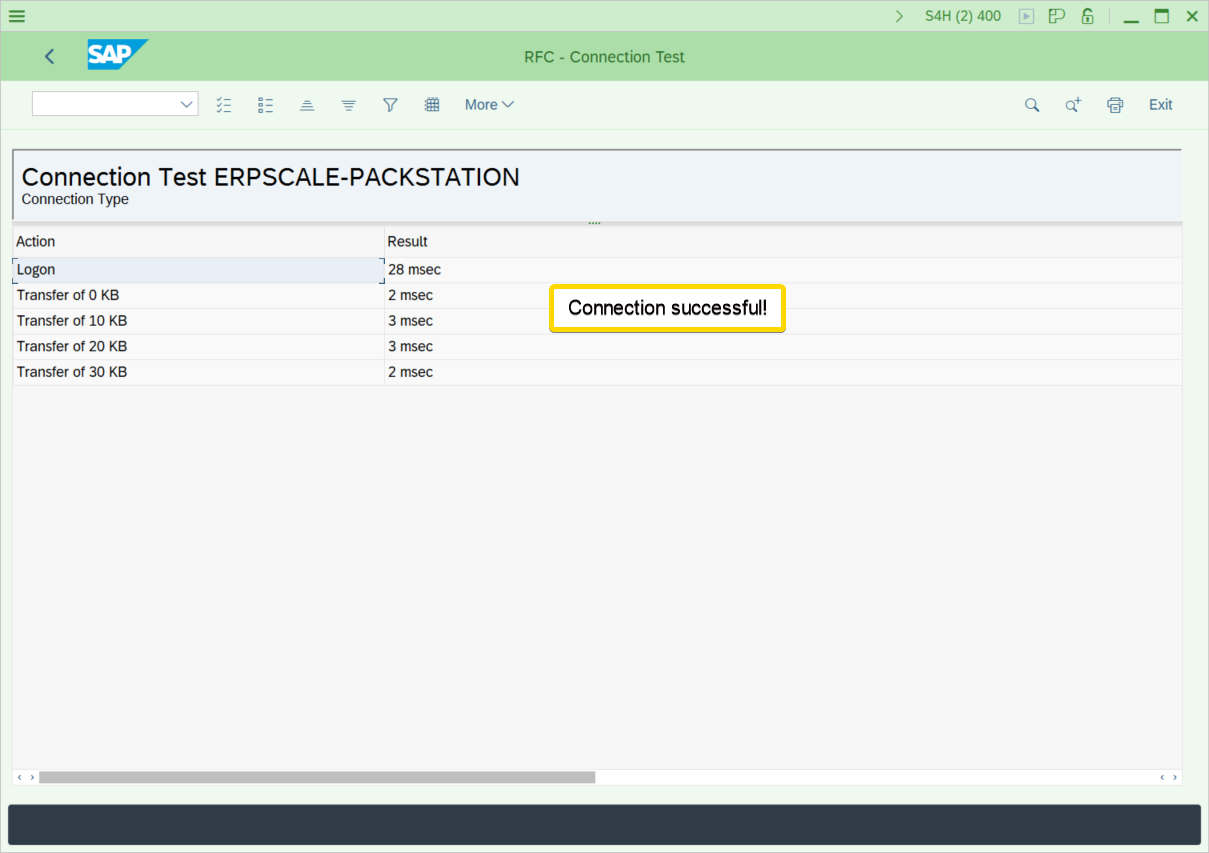
Websocket RFC connectivity is included in the latest BETA release of ERP-Scale. It is not recommended to use this release in a production environment.
Download the latest ERP-Scale V5 beta release: ERP-Scale V5.0 Downloads
Prerequisites
Websocket RFC requires TLS certificates to be created for the PC where ERP-Scale is installed. The certificate must:
- Match the fully qualified domain name (FQDN) of the PC.
- Have usage serverauth
- Use a root certificate that the SAP host can validate.
- Be exported as a PSE file and saved on the ERP-Scale PC.
The SAP server(s) must be able to resolve the FQDN of the PC.
Also check if the following SAP Note is applicable: 3056025 – RABAX with RFC even in case exceptions are caught
Activate the ERP-Scale log-file before starting: How do I enable error logging ?
How to configure ERP-Scale for Websocket RFC connections
Create a new RFC destination in ERP-Scale
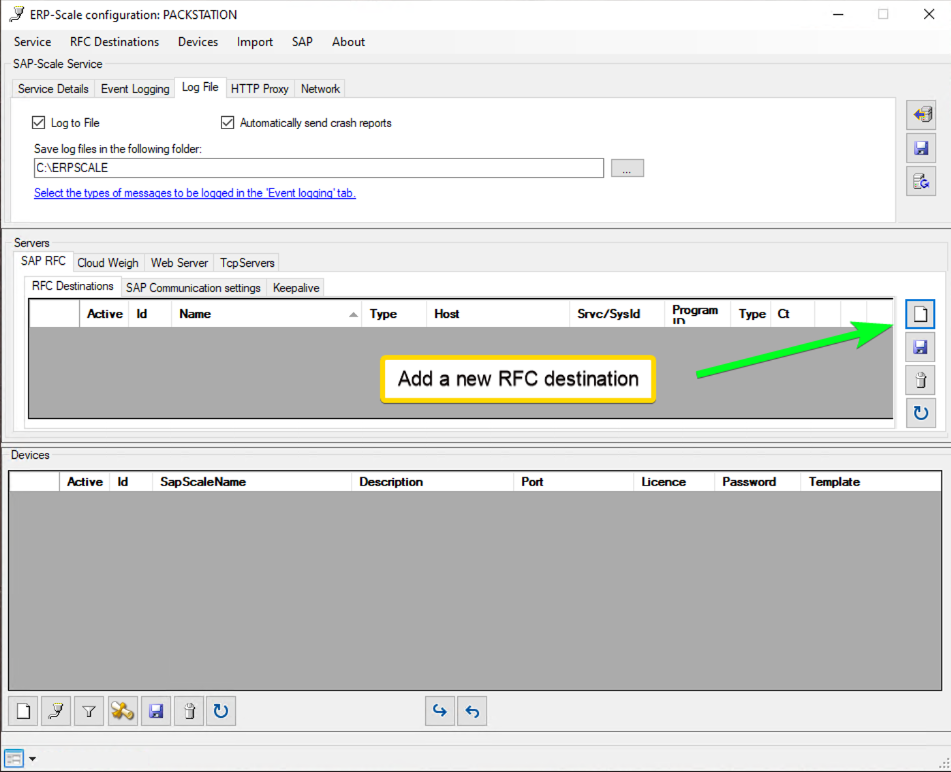
- Open the ERP-Scale configuration utility on the PC
- Add a new RFC destination
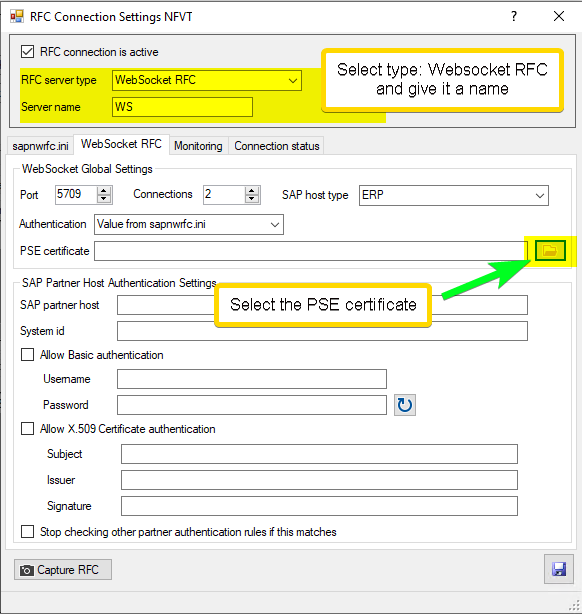
- Select RFC type Web Socket RFC and enter description
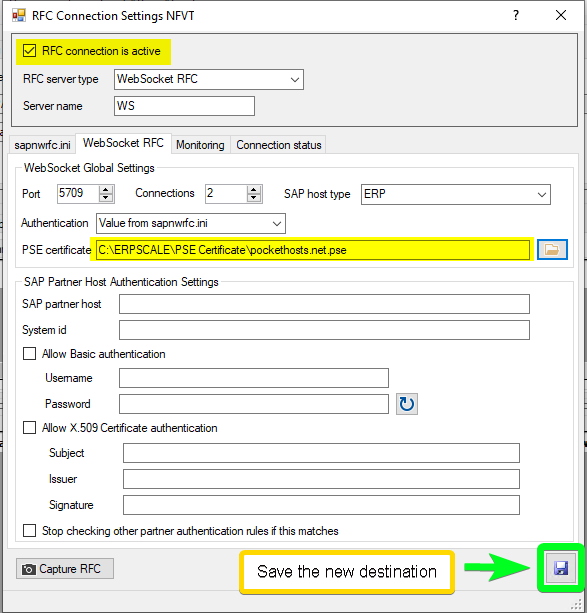
- Select the PSE certificate file:
- Save the new RFC destination
- Update the RFC destinations on the SapScale Server:
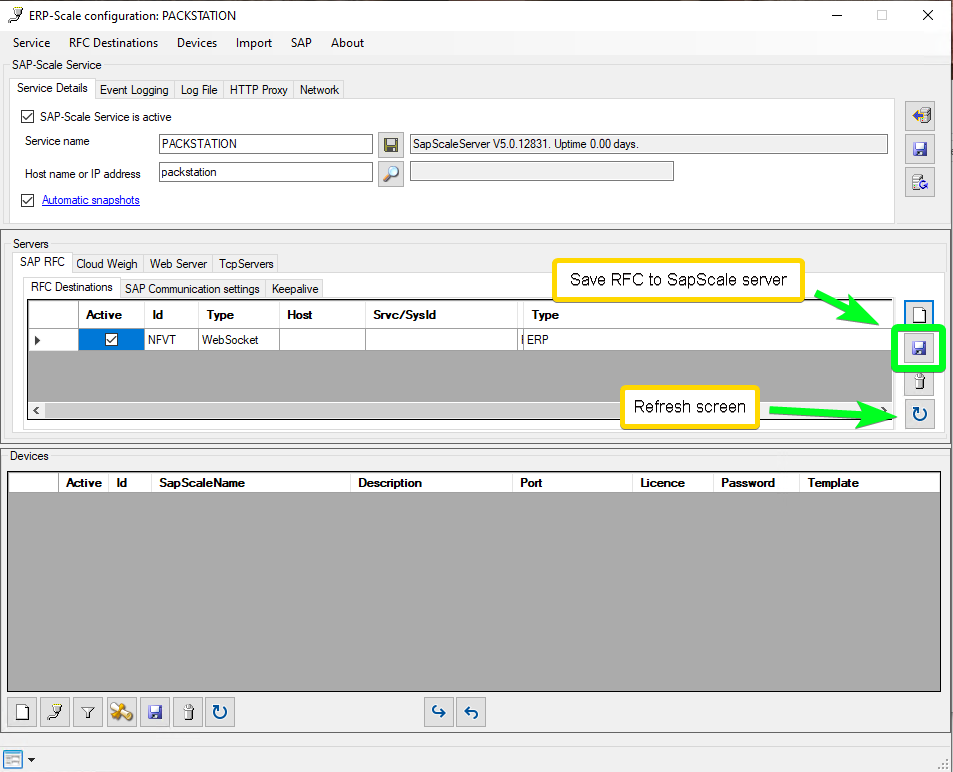
Open the ERP-Scale server monitor and select all message categories
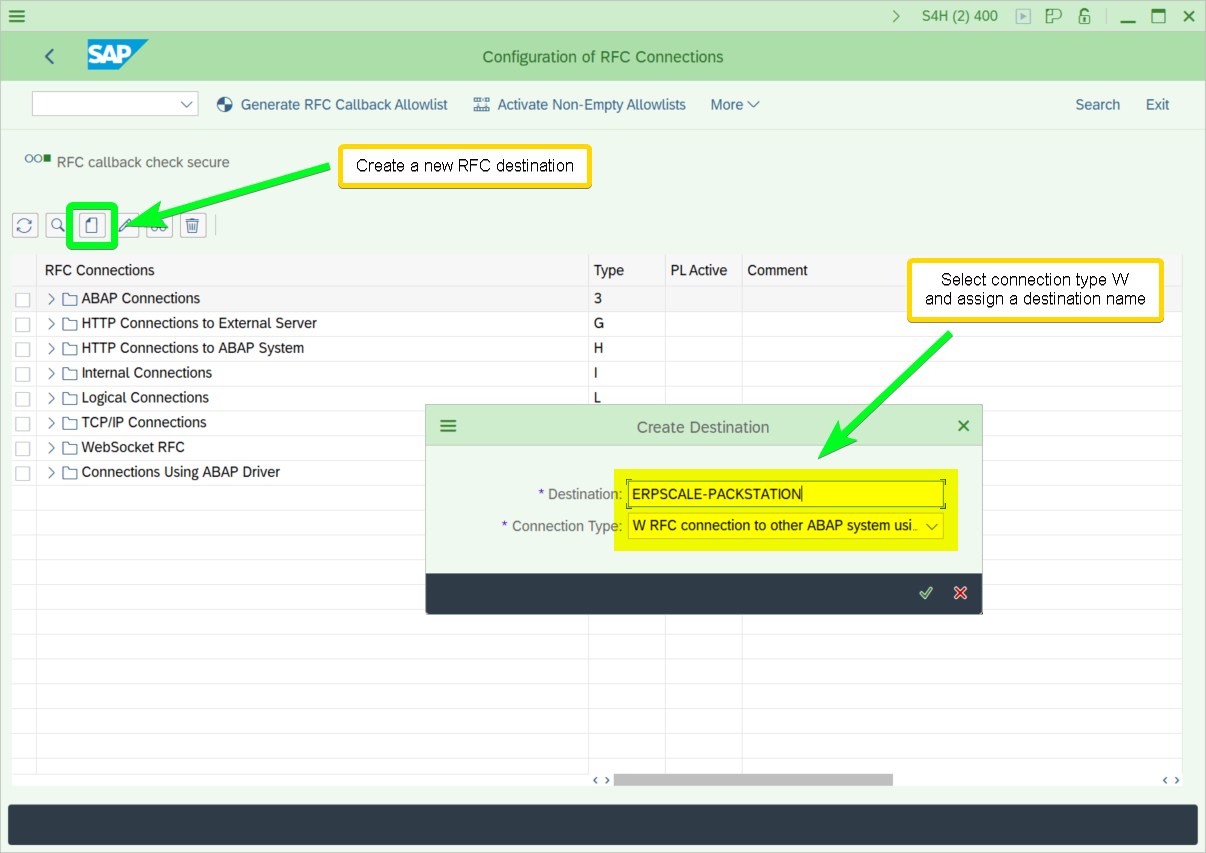
Create a new RFC destination in SAP
- Open transaction SM59 and add a new RFC destination:
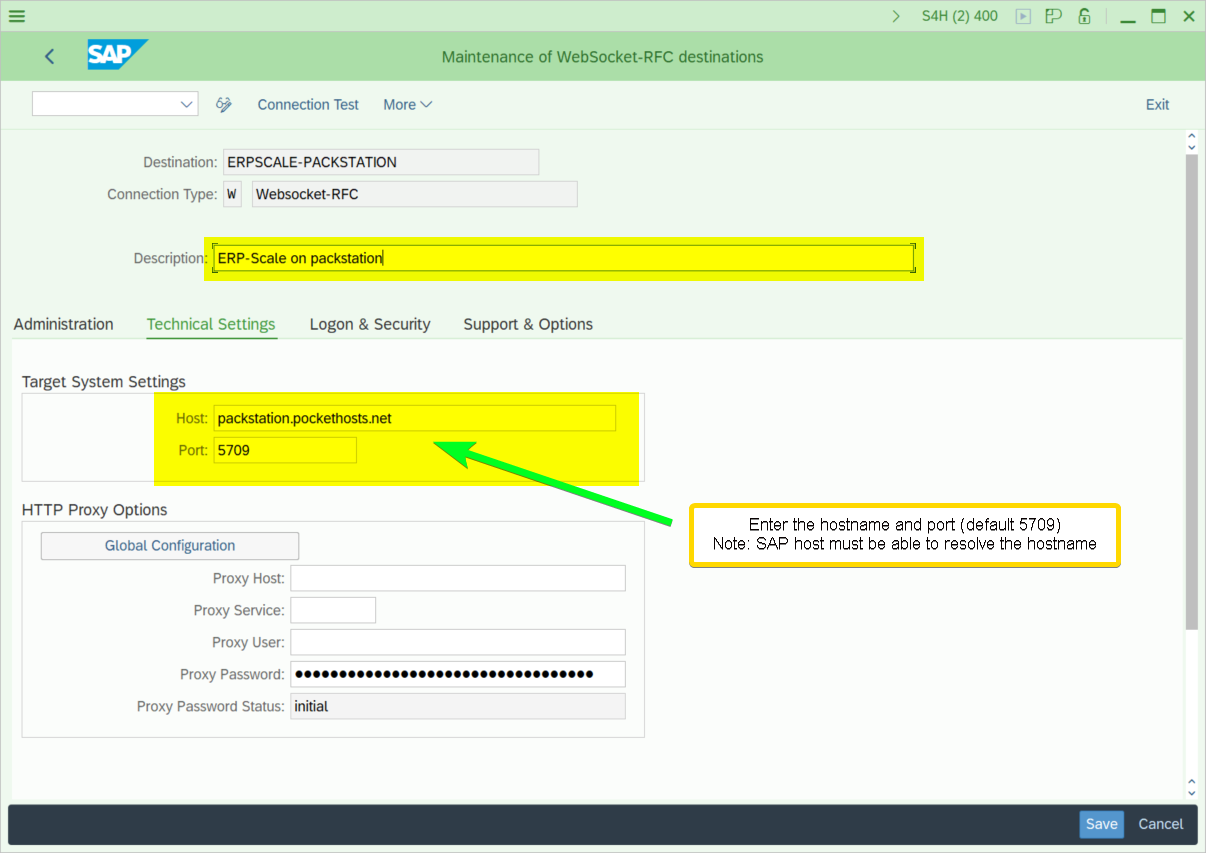
- Specify the FQDN of the ERP-Scale PC and the TCP port used for communication. Default port is 5709:
- Select the TLS certificate used for the communication and the authentication method. ERP-Scale supports fixed user/password and X.509 certificate
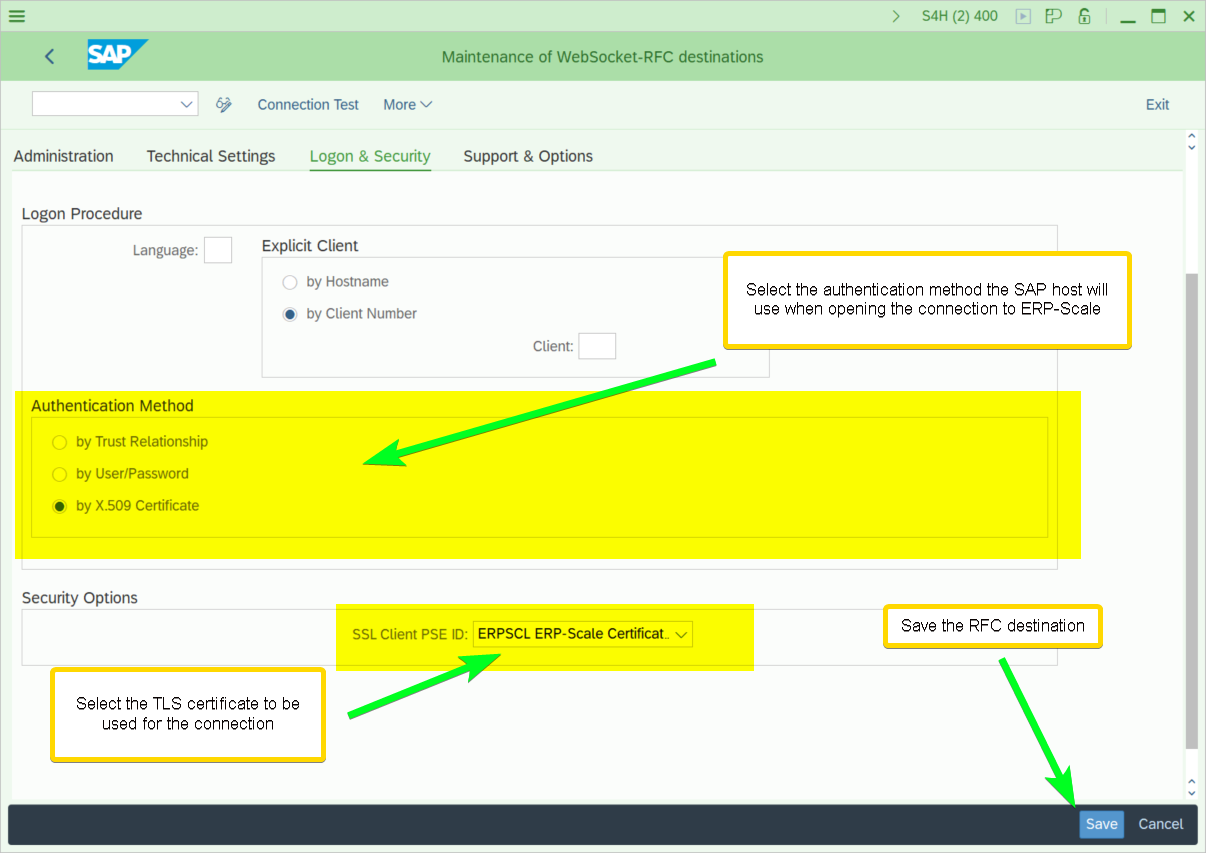
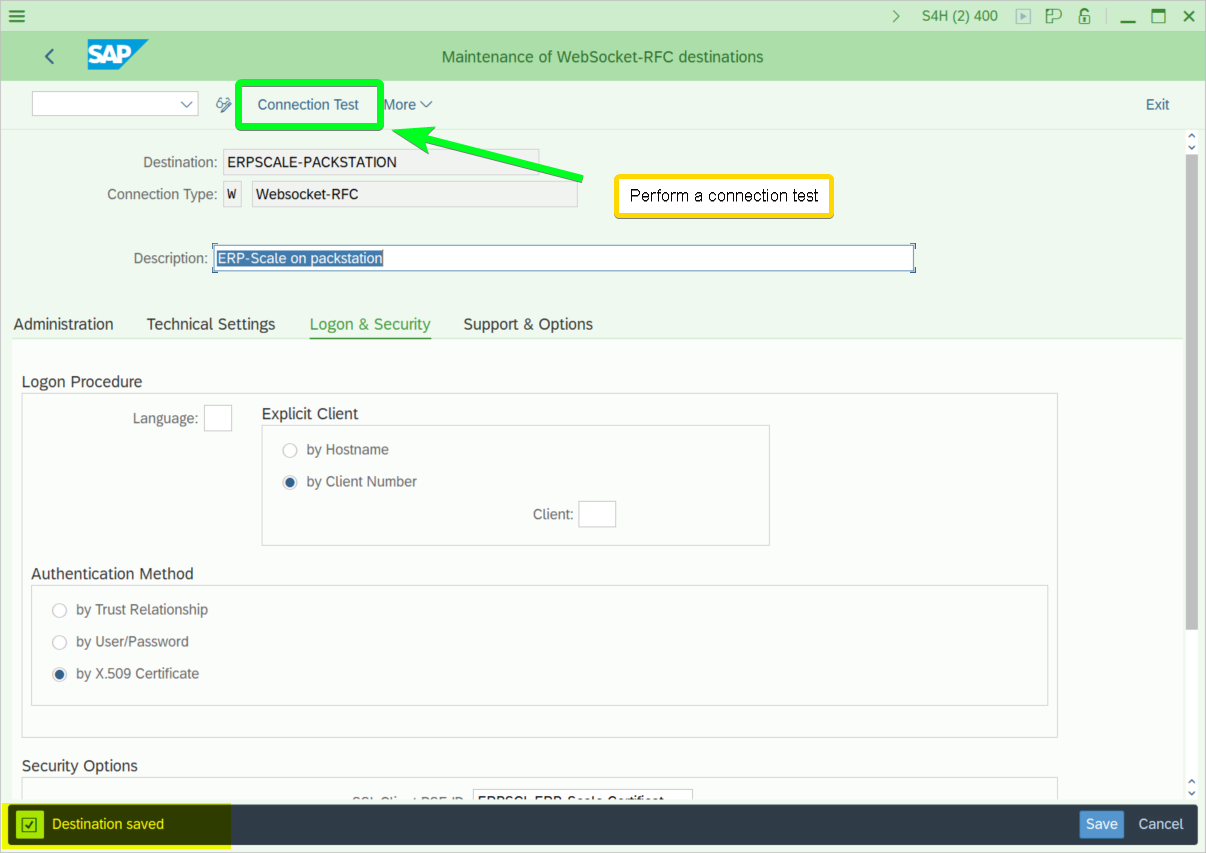
- Save the new RFC destination and perform a connection test:
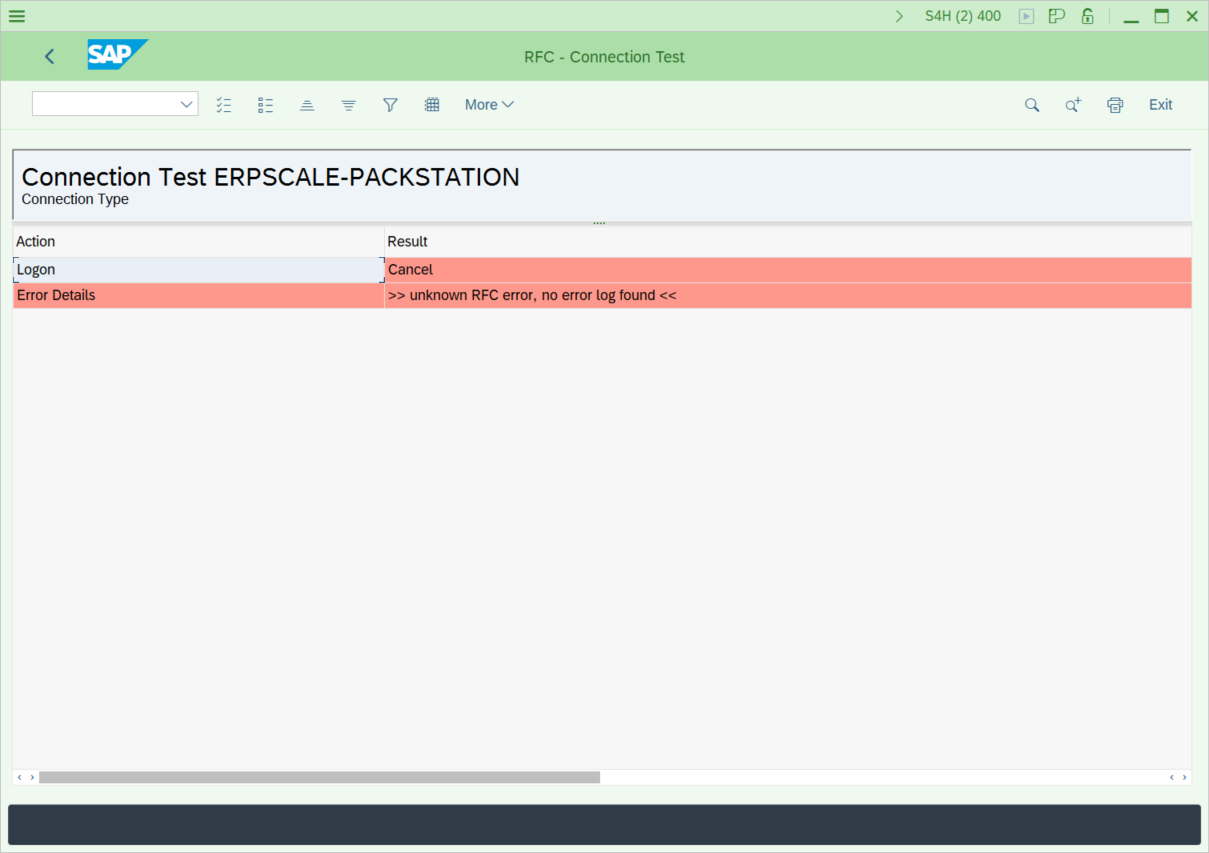
- The connection test will fail with this error:
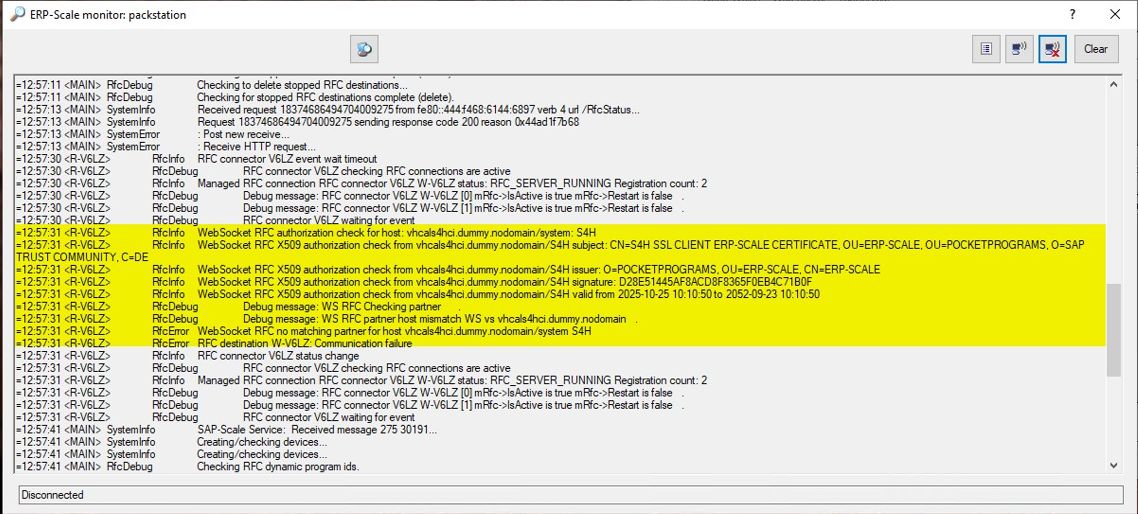
- The ERP-Scale monitor will show an RFC authentication error:
- If a different error is shown in the SM59 connection test and no authorization error is shown in ERP-Scale, perform a trace in SAP using transaction SMICM.
Capturing the authorisation credentials in ERP-Scale
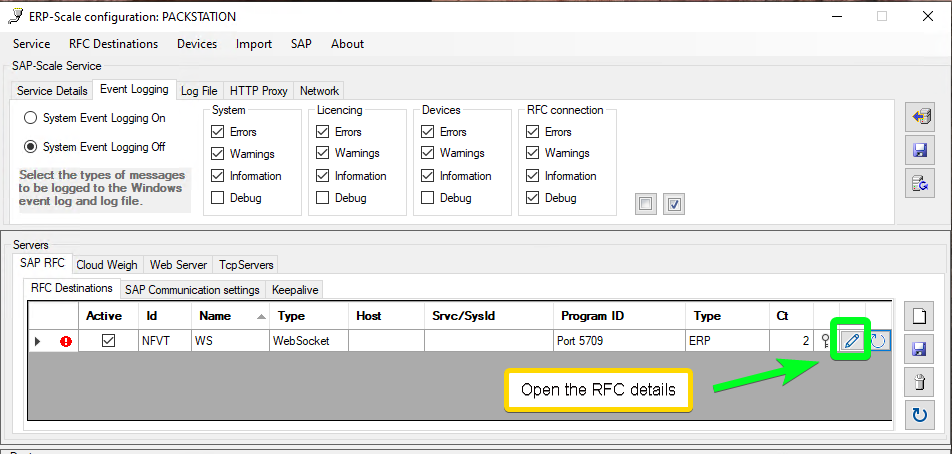
- In the ERP-Scale configuration utility, open the RFC connection details:
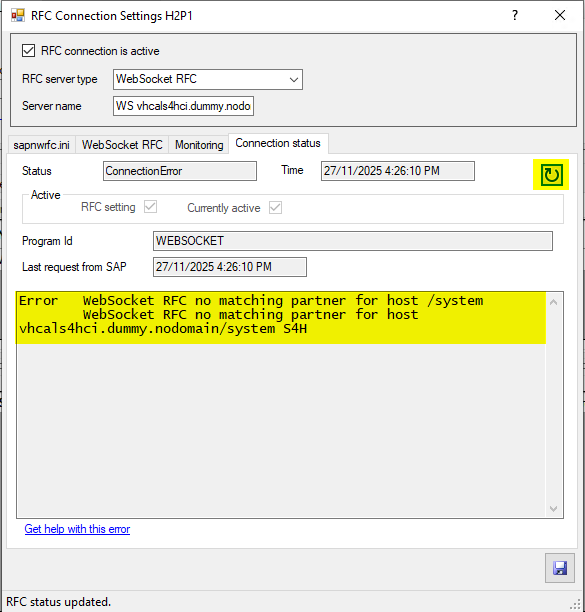
- The connection status should show the no matching partner error message:
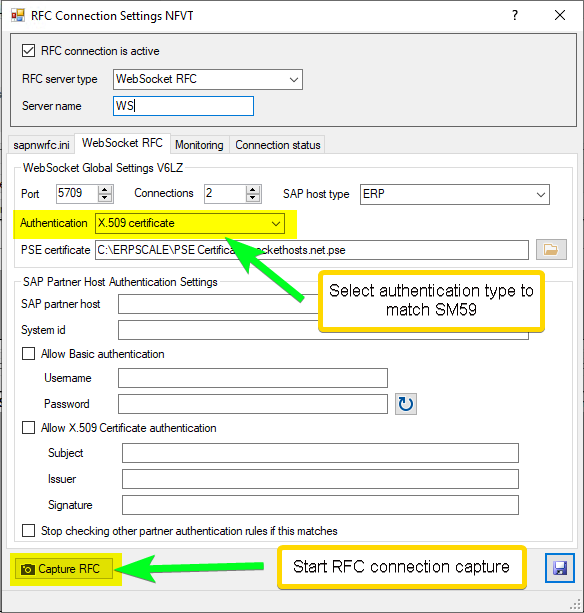
- Set the authorisation type and start the capture:
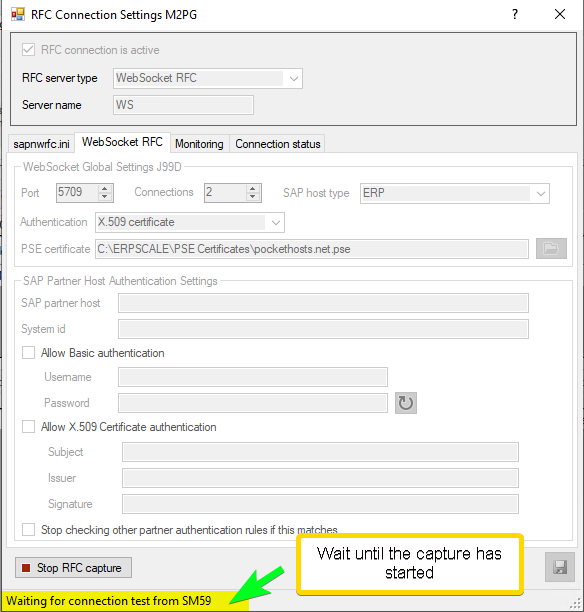
- Wait until the capture has started:
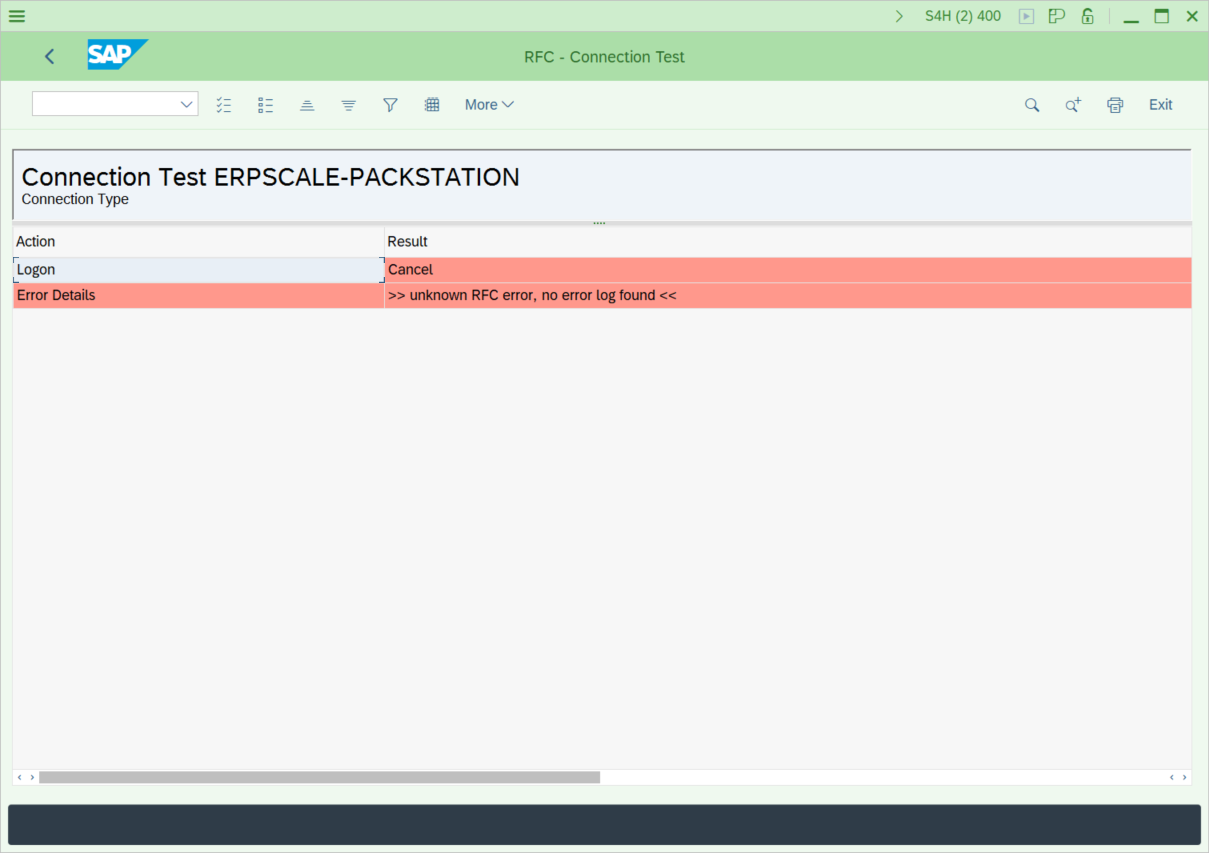
- Trigger the connection test from SM59, it will fail:
- Wait until ERP-Scale captures the connection and the authentication used:
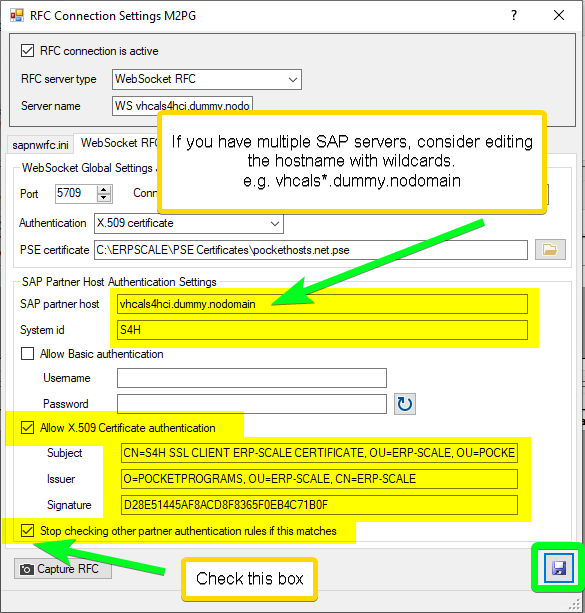 If you have multiple SAP servers, you can use wildcards to match the SAP partner host name. ?=a single character, *=multiple characters, […]=set of characters.
 - Update the SapScale server:
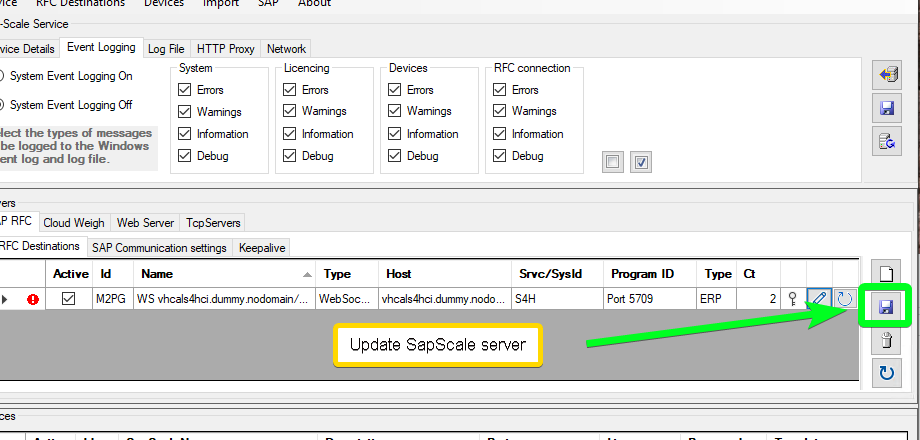
- Wait for 2 minutes for the RFC destination in ERP-Scale to be updated and restarted
- Repeat the connection test from SM59: